
AI Scribe
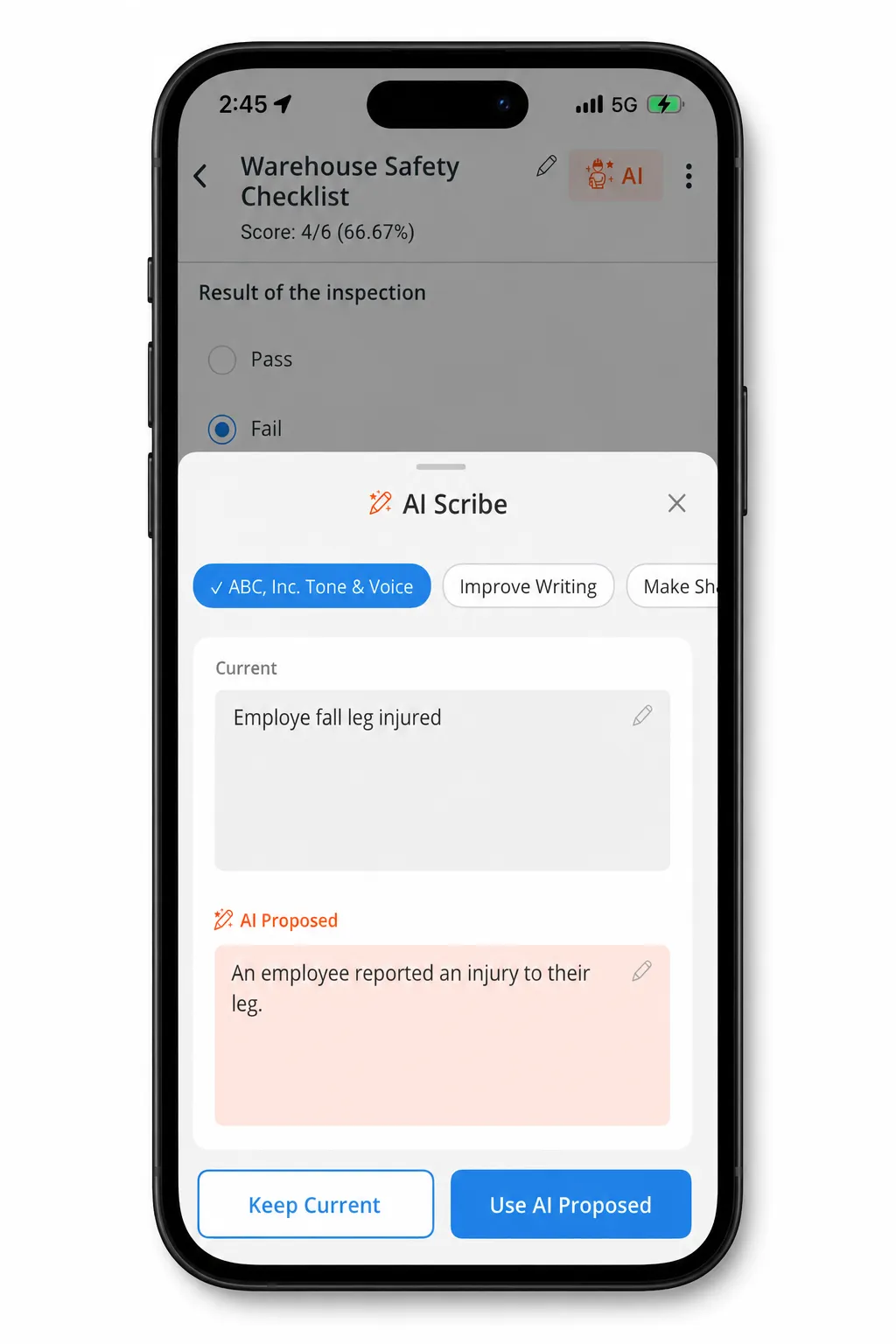
AI Scribe is a VLX AI feature that helps users improve and standardize written inspection content directly within VLX.
From supported text fields, users can apply AI skills to rewrite, improve, shorten, format, or otherwise refine inspection notes without leaving the inspection.
AI Scribe can also use organization-specific customs skills so teams can apply consistent terminology, tone, and documentation standards.
How AI Scribe works
AI Scribe works directly within inspection fields where users enter written content.
Instead of copying text into another application, users can select an AI Scribe skill and apply it to the content already entered in the field.
1. Enter your inspection notes
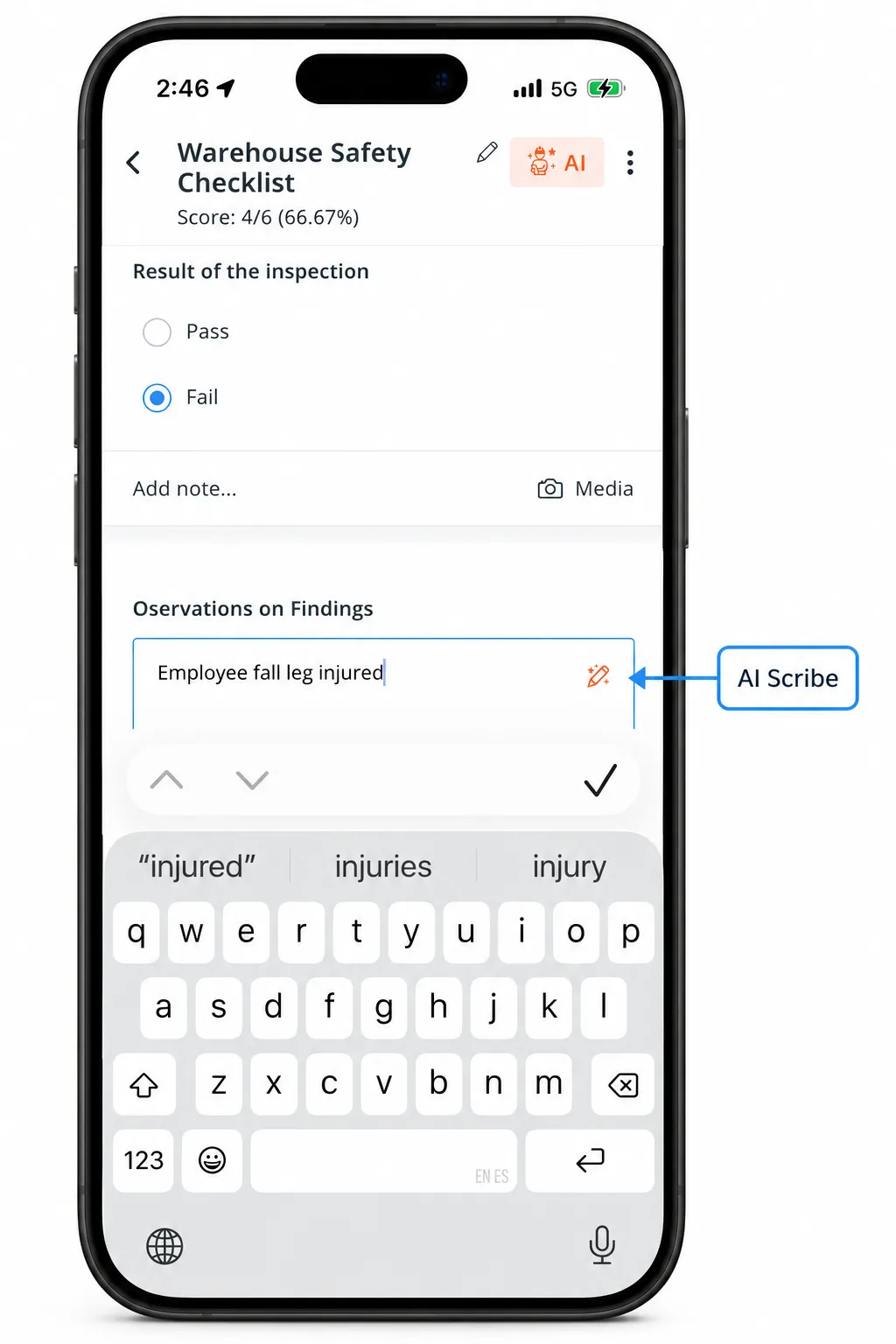
Enter your observation, finding, or other inspection content in a supported text or note field.
2. Open AI Scribe
When you select the AI Scribe icon the available AI Scribe skills will appear.
3. Select an AI skill
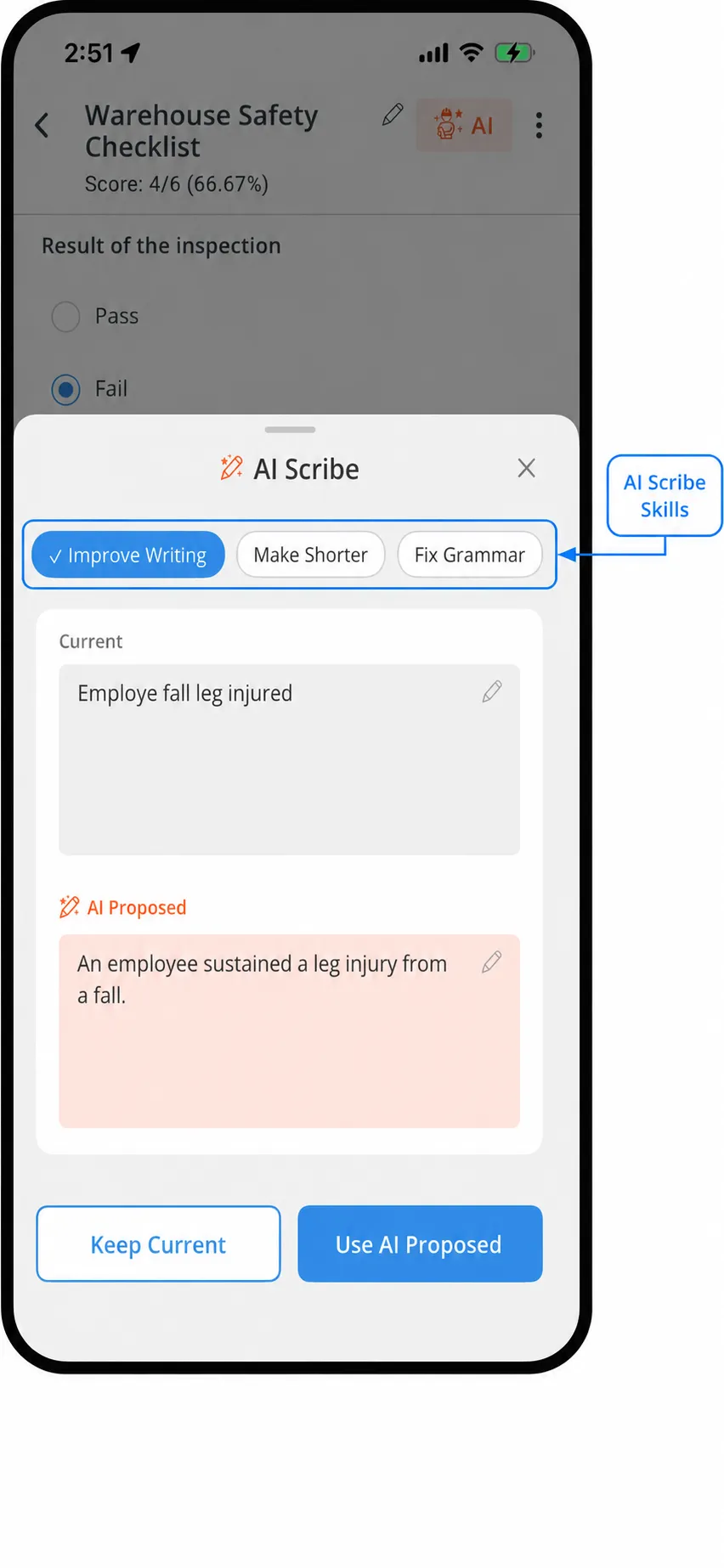
Choose the skill you want to apply.
Available skills may include options such as:
- Improve Writing
- Make Shorter
- Fix Grammar
- Upper Case
- Lower Case
- Title Case
- Custom organization skills
The skills available to you depend on your organization's AI Scribe configuration and the settings applied to that specific template field.
4. Review the AI-generated content
AI Scribe generates a revised version of the content based on the selected skill.
Review the result before applying it to the field.
5. Apply the result
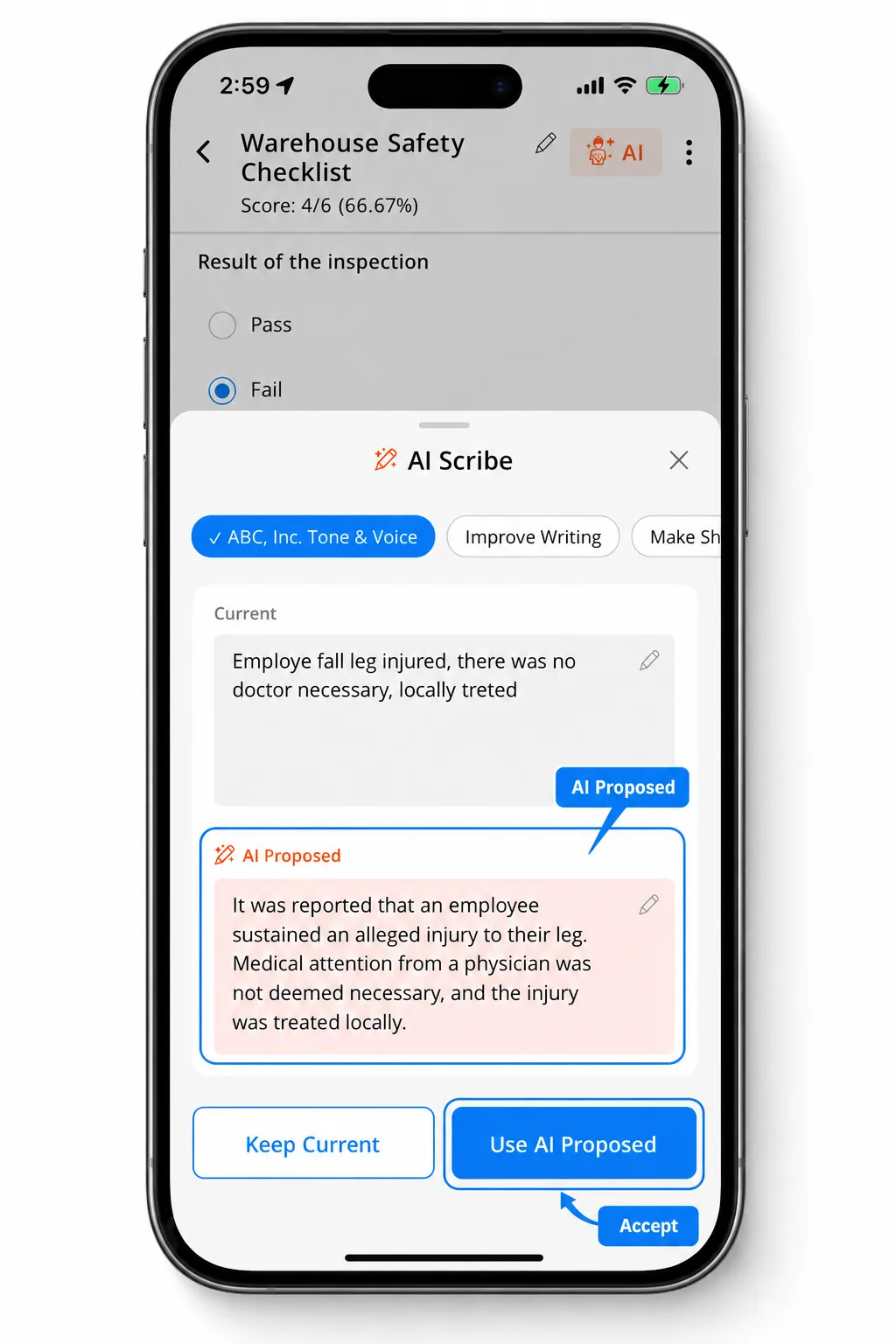
If the generated text accurately reflects the desired content, apply it to the field.
You can continue editing the text manually after applying the AI-generated version.
AI Scribe skills
AI Scribe uses skills to determine how content should be modified.
Common skills
VLX provides common skills out of the box for general writing tasks, such as improving writing, shortening content, correcting grammar or enhancing formatting.
Creating Custom AI Scribe Skills
Organizations can create custom AI Scribe skills to apply their own writing style, terminology, tone, and documentation standards.
Custom skills can also be limited to specific teams, allowing different teams to use different writing guidelines.
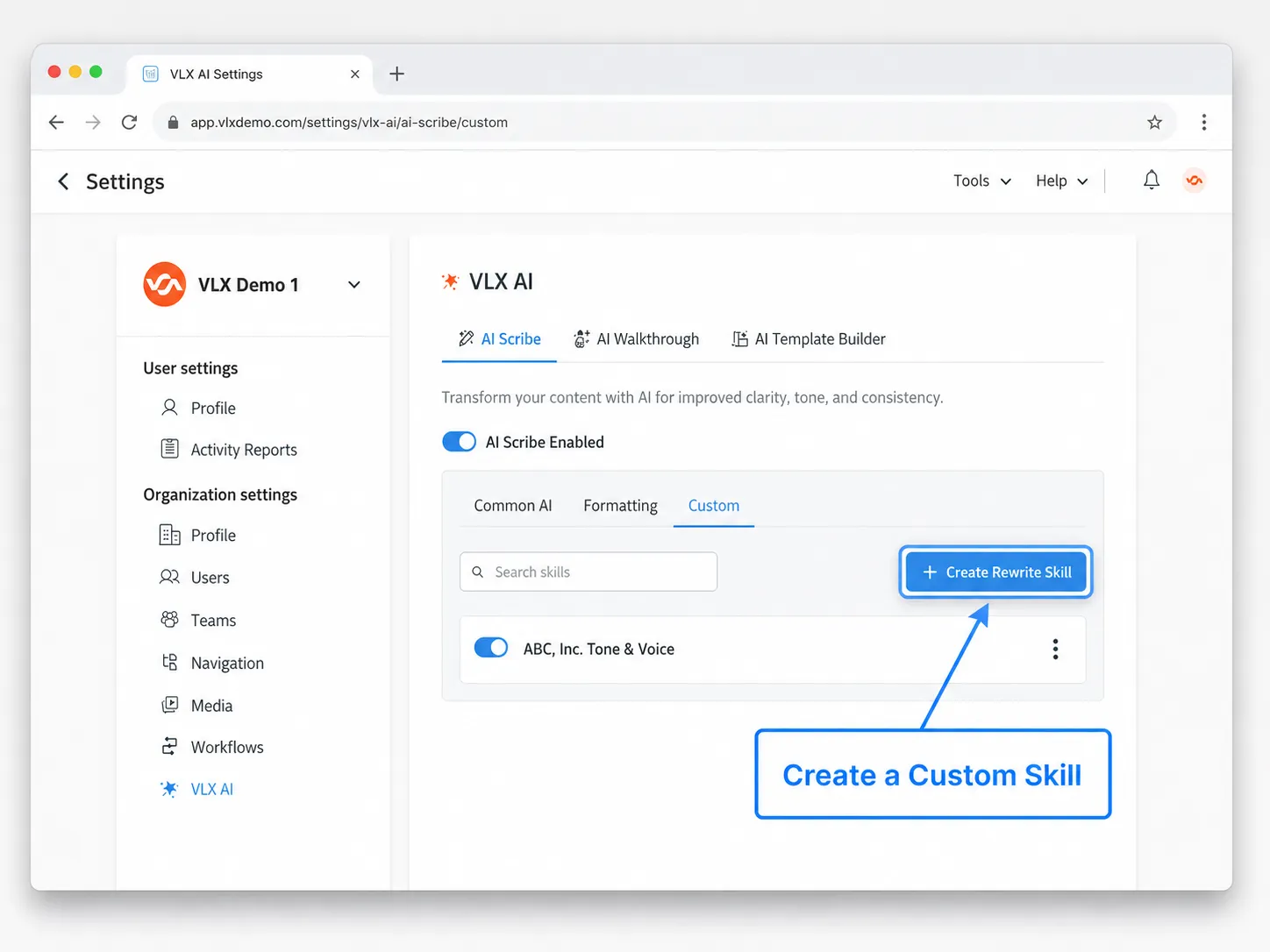
To start go to:
Settings → Organization settings → VLX AI → AI Scribe → Custom
Select Create Custom Skill.
1. Define the skill
Enter the information AI Scribe should use to understand how the skill should rewrite content.
Configure:
- Skill Name: Give the skill a clear name that users will recognize.
- Description: Briefly describe what the skill is intended to do.
- Teams: Select which teams can use the skill.
- Voice & Tone: Describe how content should be written. Include terminology, tone, formatting expectations, and other writing requirements.
- Reference Documents: Optionally upload documents that demonstrate the desired writing style or provide additional guidance.
For Voice & Tone, write the instructions as you would explain the requirements to a new team member.
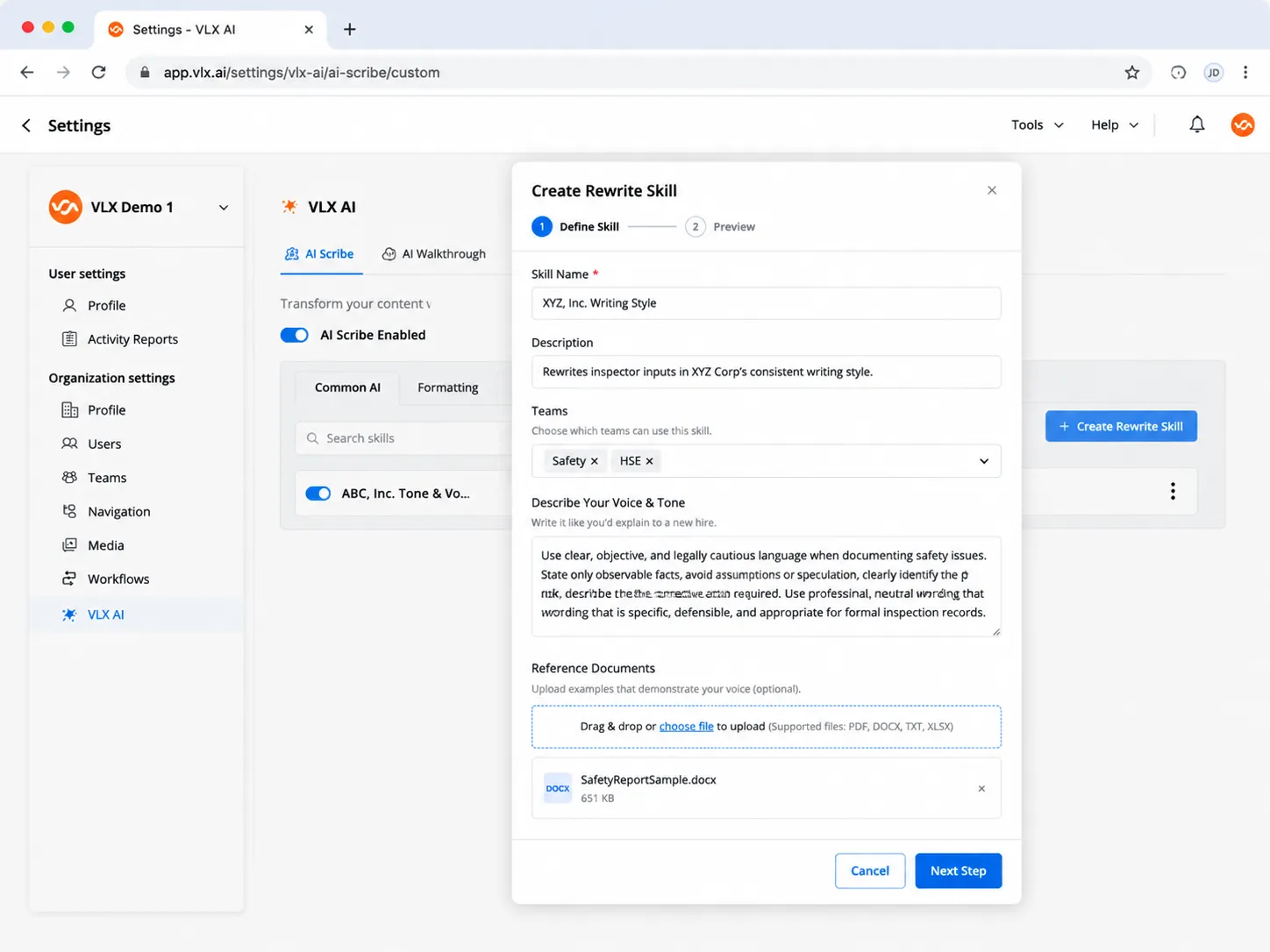
Reference documents can provide additional examples and context for VLX AI when creating the skill.
When finished, select Next Step.
2. Review the generated guidelines
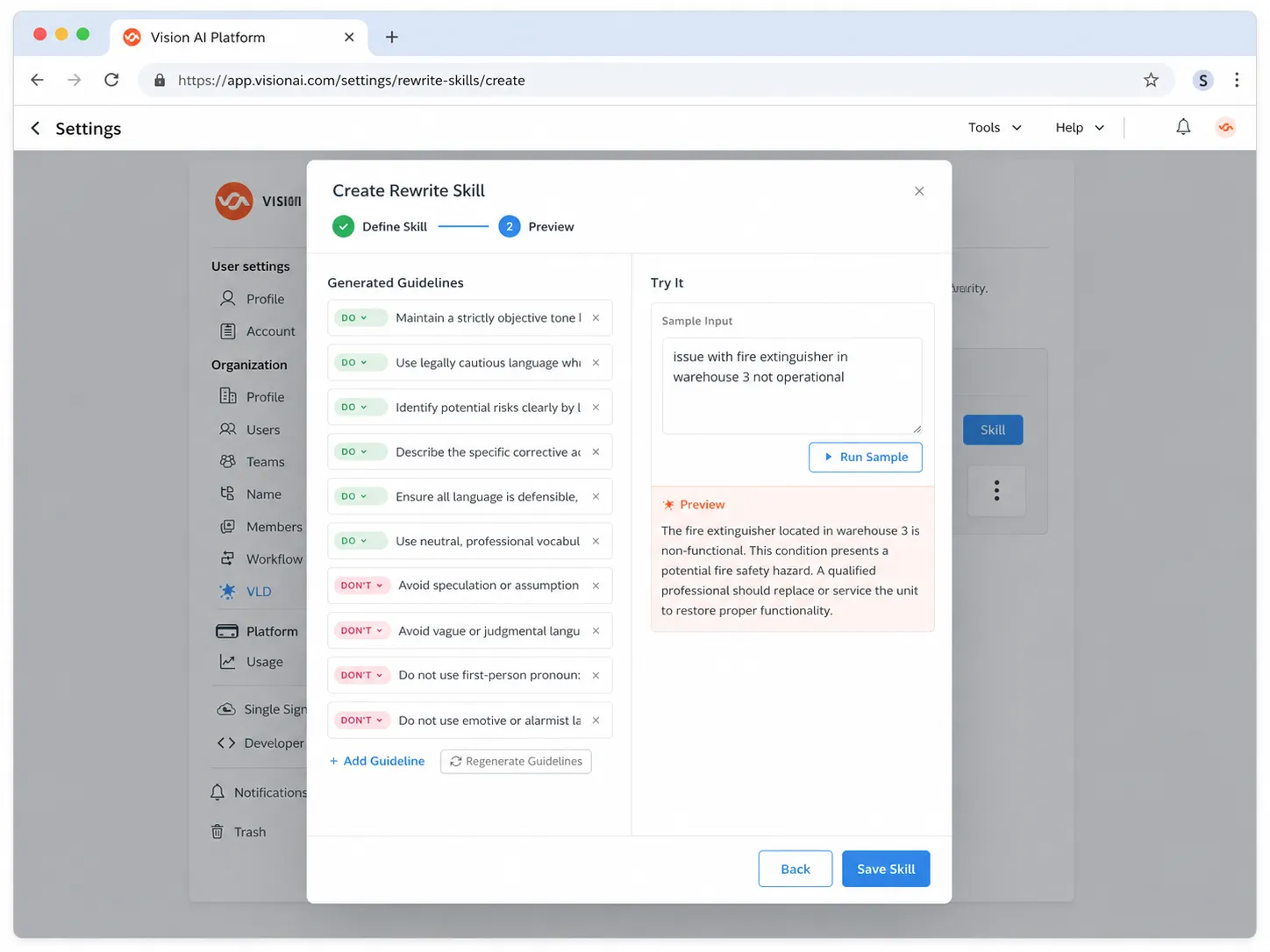
VLX AI uses the information you provided to generate a set of writing guidelines for the skill.
Guidelines are organized into:
- DO guidelines that define what AI Scribe should do
- DON'T guidelines that define what AI Scribe should avoid
Review these guidelines before saving the skill.
You can:
- Remove individual guidelines
- Add additional guidelines
- Regenerate the guidelines if needed
3. Test the skill
Before saving, use Try It to see how the skill performs.
Enter sample inspection text and select Run Sample.
VLX AI generates a preview using the proposed guidelines so you can verify that the result follows the intended writing style.
If the result does not meet your requirements, adjust the guidelines or return to the previous step and modify the skill instructions.
4. Save the skill
Once the guidelines and sample output meet your requirements, select Save Skill.
The custom skill will then appear under:
VLX AI → AI Scribe → Custom
Users with access to the applicable teams can use the skill wherever it is available in AI Scribe.
Configuring AI Scribe
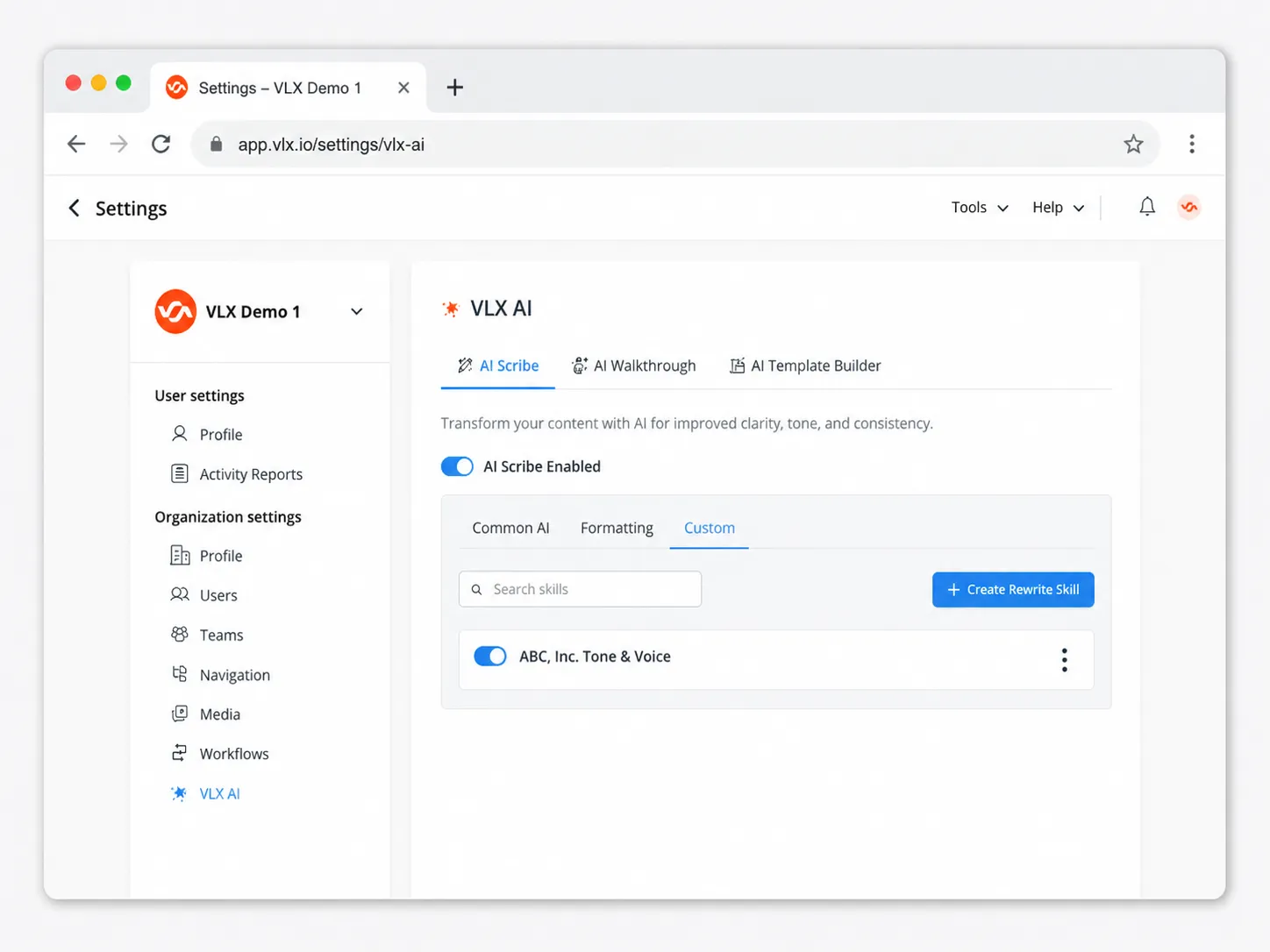
Administrators can configure and enable AI Scribe skills under:
Settings → Organization settings → VLX AI → AI Scribe
From this page, administrators can manage the default AI Scribe configuration for the organization, including available out-of-the-box skills and custom skills.
Configuring AI Scribe at the template level
AI Scribe can also be configured for individual fields within a template.
This allows template administrators to control where AI Scribe can be used and which skills are appropriate for a particular question or field.
In the Template Builder:
- Select the field.
- Open the VLX AI tab in the field properties.
- Enable or disable AI Scribe for the field.
- Review the available AI Scribe skills.
- Select Modify to override the default skills for that field.
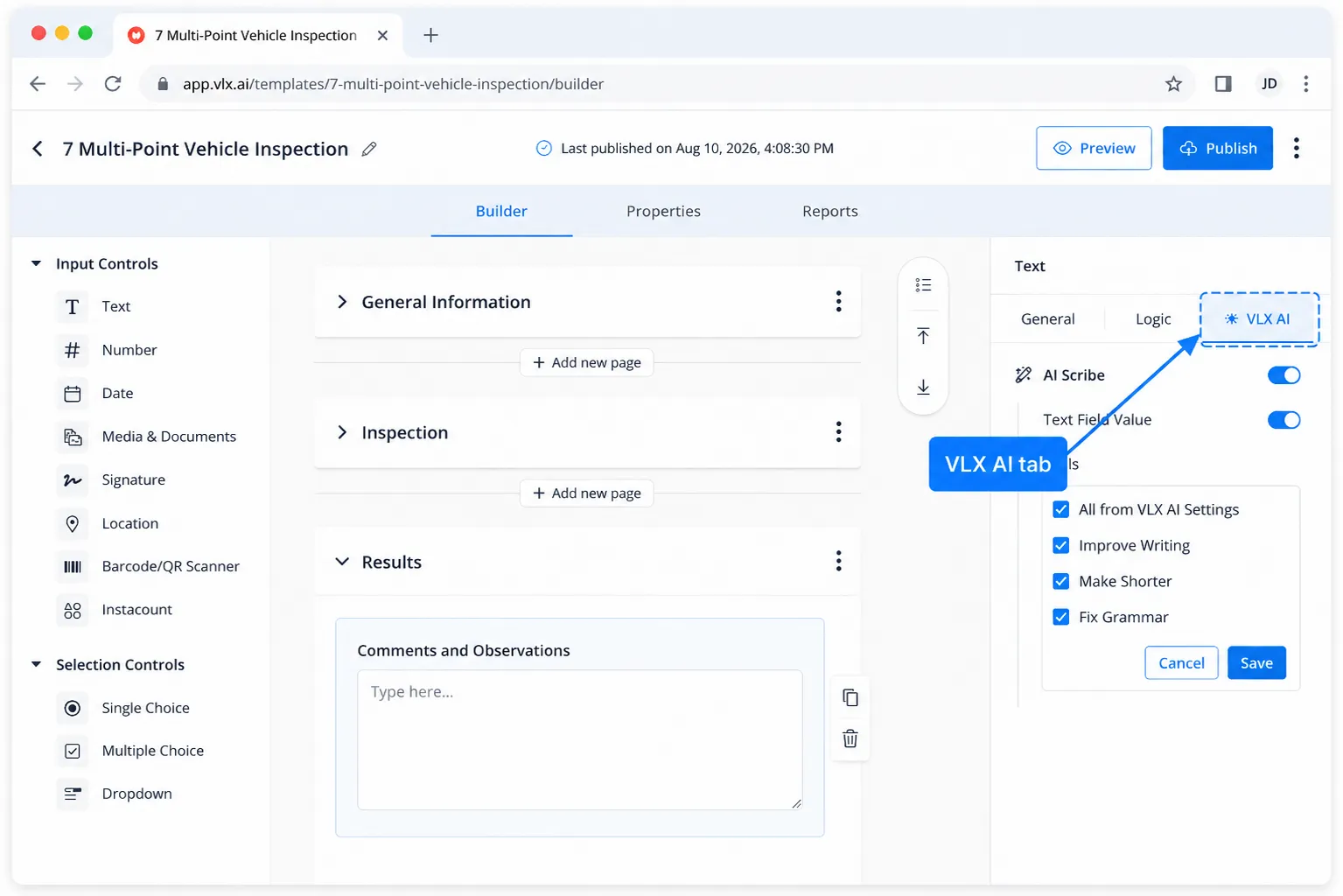
Overriding default AI Scribe skills
By default, a field can use the AI Scribe skills configured in the organization's VLX AI settings.
You can override those defaults at the field level.
For example, if Improve Writing and Fix Grammar are appropriate for a field but Make Shorter is not, you can remove Make Shorter from that field without changing the organization's default AI Scribe settings.
This provides three levels of control:
- Organization level: Determines the default AI Scribe configuration and available skills.
- User level: Determines which users can access AI Scribe.
- Template field level: Determines where AI Scribe can be used and which skills are available for a specific field.
Managing user access
AI Scribe access can be controlled for individual users.
Administrators can manage access under:
Settings → Organization settings → Users
From the user's menu, enable or disable AI Scribe.
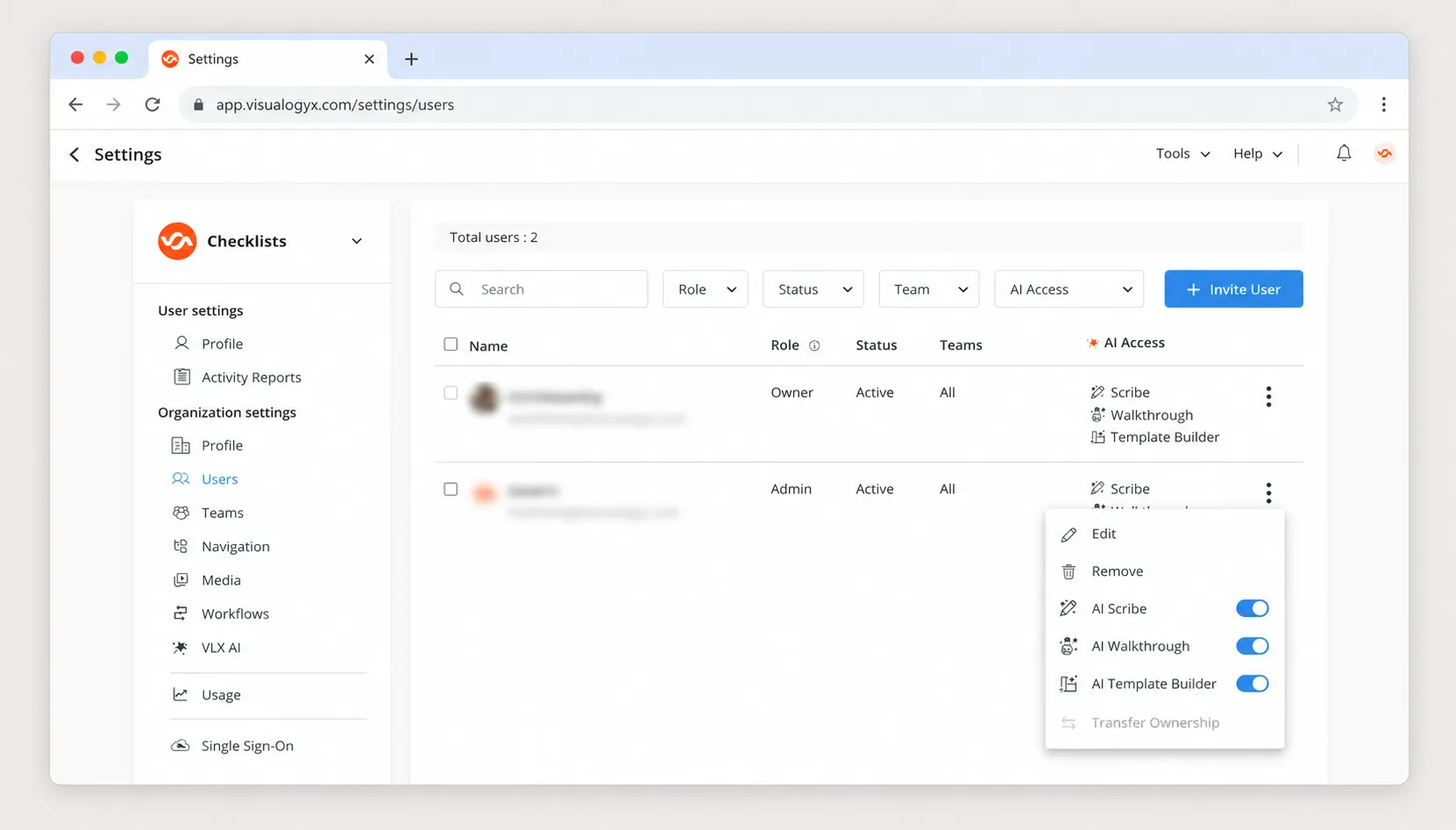
This allows organizations to determine which users can access AI Scribe.
See Managing VLX AI AccessManaging VLX AI for more information about organization-level settings.
AI Scribe usage
Using AI Scribe consumes VLX AI credits.
Users can view their current AI usage from the VLX AI icon in the top navigation bar. Administrators can also review detailed usage across the organization.
See Monitoring VLX AI UsageViewing VLX AI Usage for more information.
Review AI-generated content
AI Scribe is designed to assist with inspection documentation. Users should review AI-generated content before applying it to ensure that it accurately reflects the inspection finding and does not change the intended meaning.
Related articles
- AI WalkthroughAI Walkthrough
- AI Template BuilderAI Template Builder
- Monitoring VLX AI UsageMonitoring VLX AI Usage
- Managing VLX AI AccessManaging VLX AI Usage