
Managing VLX AI Access
VLX gives administrators control over who can use features powered by VLX AI.
Access can be managed at multiple levels, allowing organizations to enable AI capabilities for the appropriate teams and users while limiting access where needed.
VLX AI currently includes:
- AI Scribe
- AI Walkthrough
- AI Template Builder
Manage VLX AI features
To manage VLX AI for your organization, go to:
Settings → Organization settings → VLX AI
The VLX AI settings page contains separate tabs for each feature.
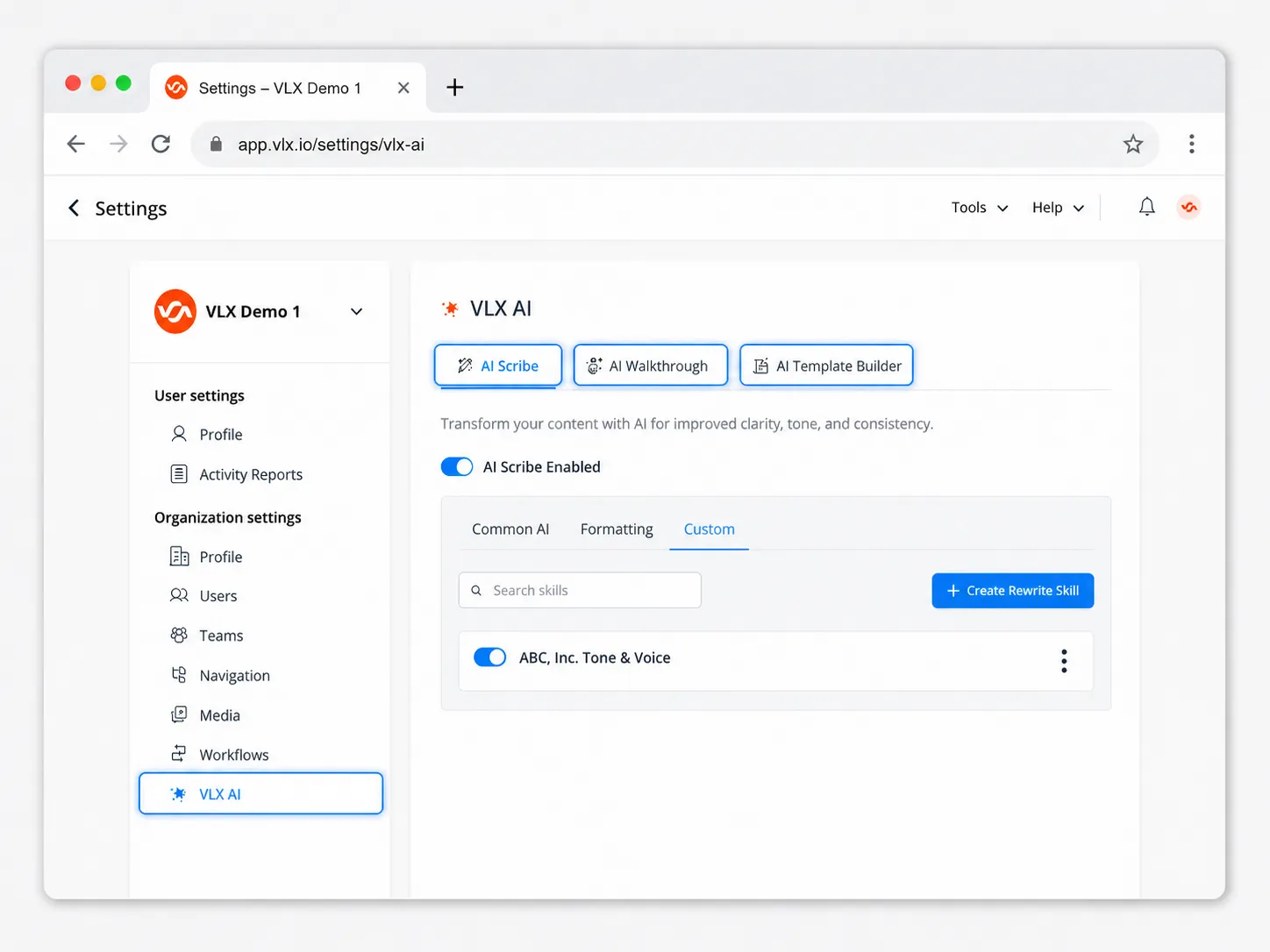
From here, administrators can enable features and configure the settings available for each one.
Team access
Some VLX AI features can also be enabled for specific teams.
For example, AI Walkthrough can be enabled and assigned only to selected teams.
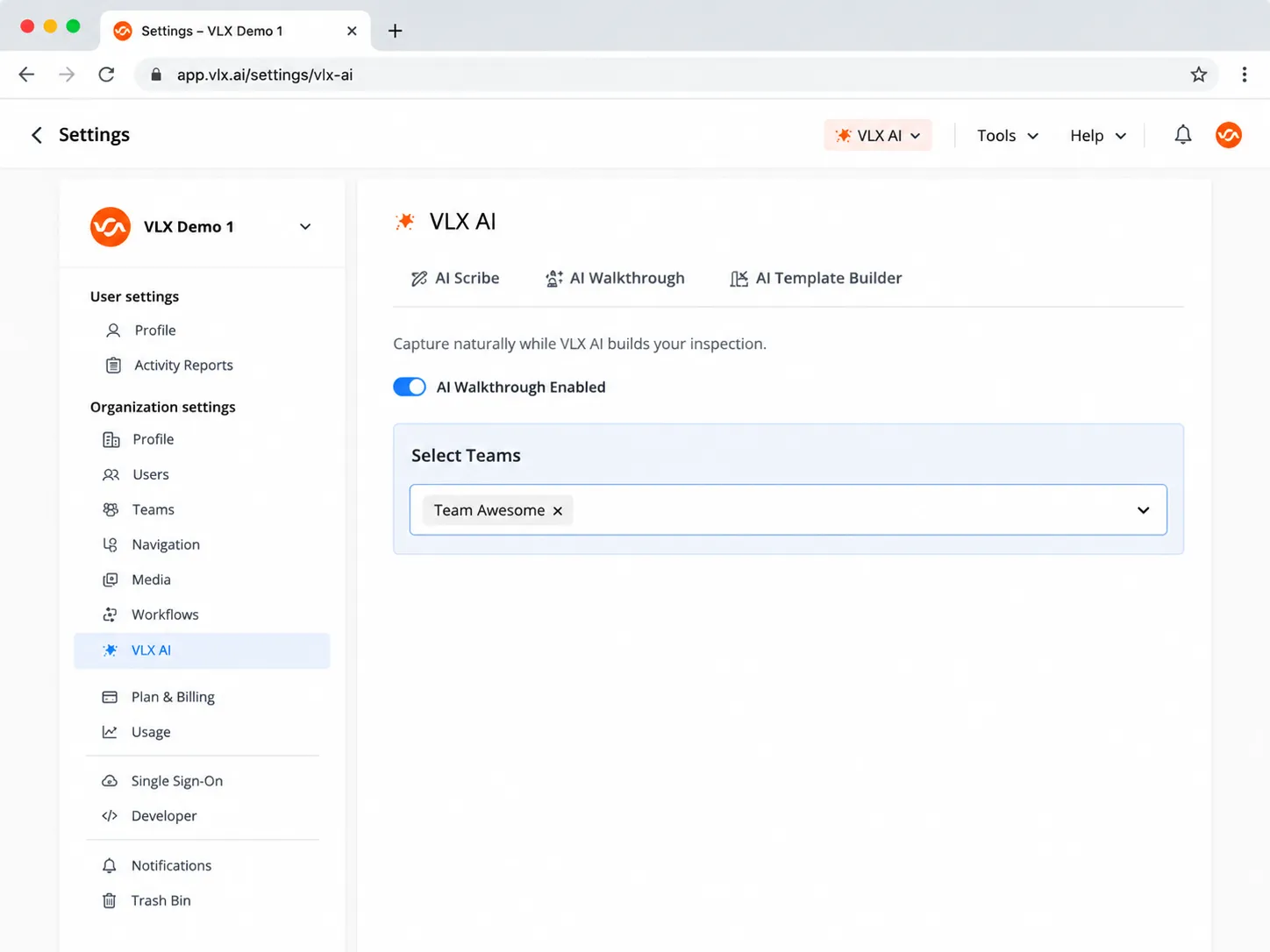
This allows organizations to make a feature available only where it is needed.
Manage access by user
Administrators can control which VLX AI features each individual user can access.
Go to:
Settings → Organization settings → Users
The AI Access column shows the VLX AI features currently available to each user.
To change a user's access:
- Find the user.
- Open the three-dot menu.
- Enable or disable the applicable VLX AI features.
You can manage access independently for:
- AI Scribe
- AI Walkthrough
- AI Template Builder
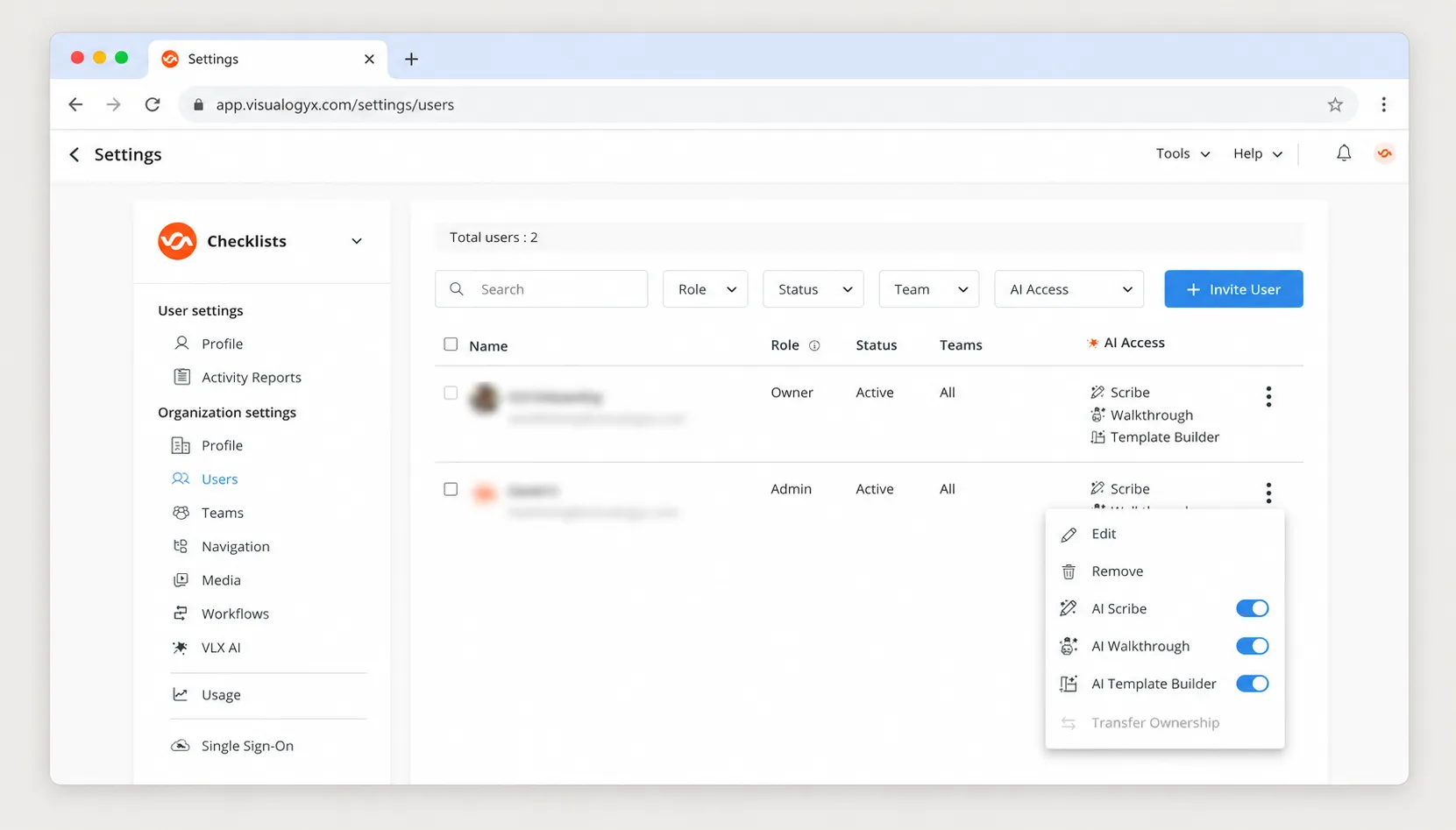
This allows one user to have access to all VLX AI features while another user may have access to only the features required for their role.
Manage AI Scribe access within templates
AI Scribe provides an additional level of control at the template field level.
Template administrators can determine whether AI Scribe is available for a specific field and which AI Scribe skills users can apply there.
Open the template in the Template Builder, select the applicable field, and open:
Field Properties → VLX AI
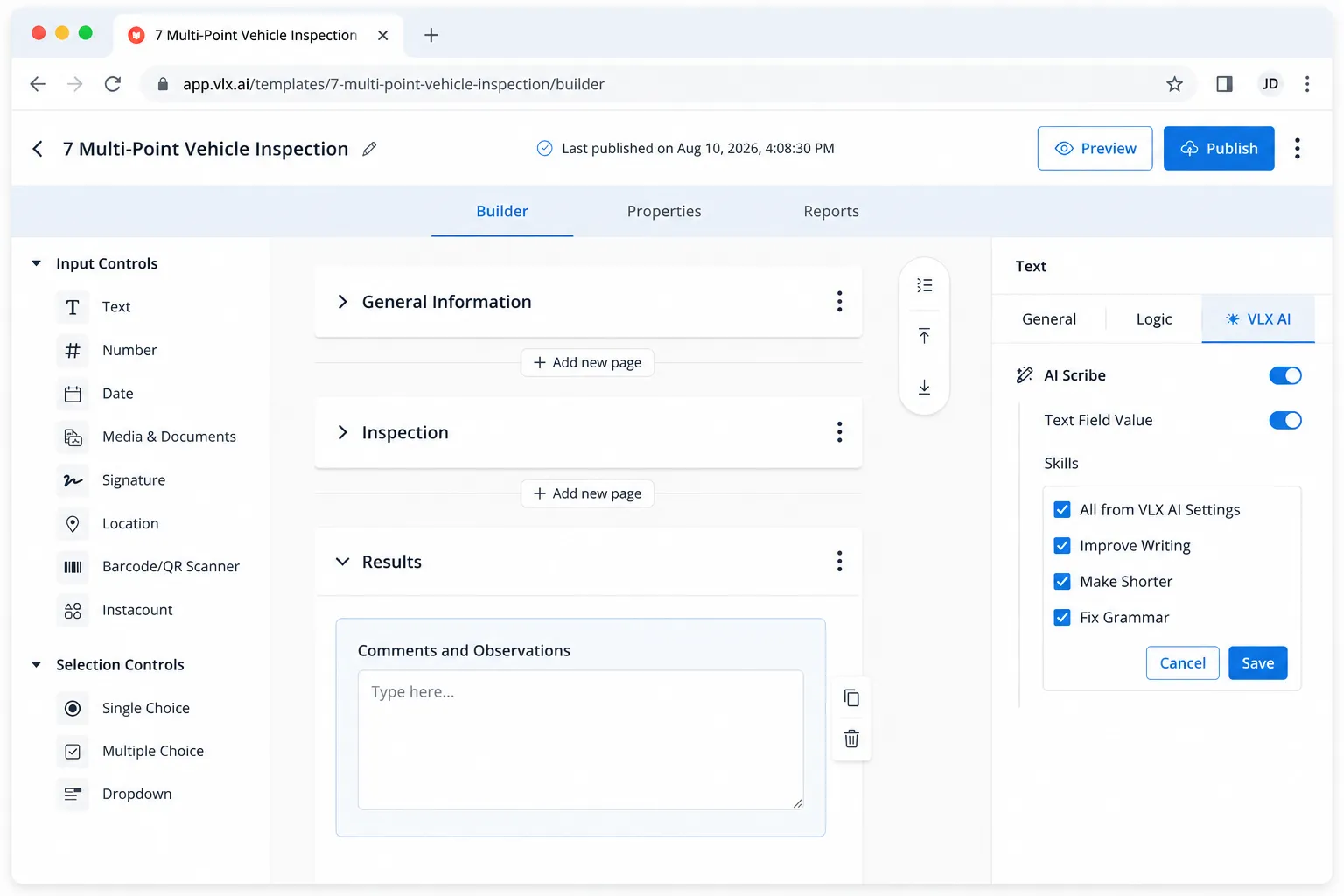
From the VLX AI tab, you can:
- Enable or disable AI Scribe for the field
- Control the types of content AI Scribe can use
- Determine which AI Scribe skills are available
Override the default skills
Fields can inherit the AI Scribe skills configured in your organization's VLX AI settings.
You can override those defaults when a particular skill is not appropriate for a specific question.
For example, you may allow:
- Improve Writing
- Fix Grammar
while removing:
- Make Shorter
for a field where shortening the response could remove important inspection details.
How VLX AI access works
VLX AI access can be controlled at several levels:
Level | Controls |
|---|---|
Organization | Which VLX AI features are enabled and their default configuration |
Team | Which teams can access supported features |
User | Which VLX AI features an individual user can use |
Template / Field | Where AI Scribe is available and which skills can be used |
A user must have access to the applicable VLX AI feature before they can use it.
Feature availability may also depend on your organization's VLX plan.
Related articles
- AI WalkthroughAI Walkthrough
- AI ScribeAI Scribe
- AI Template BuilderAI Template Builder
- Monitoring VLX AI UsageMonitoring VLX AI Usage