
AI Walkthrough
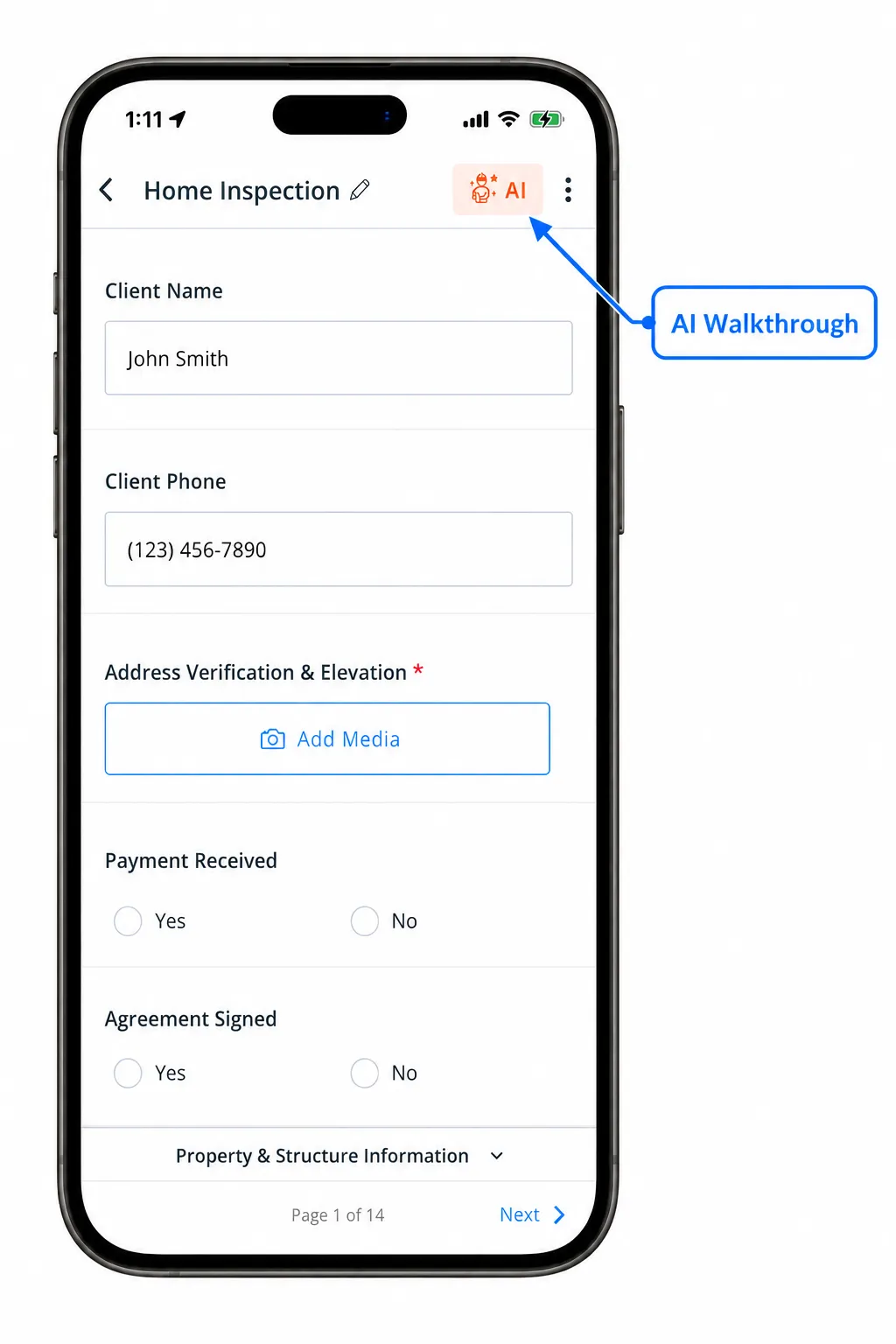
AI Walkthrough is a VLX AI feature that lets you capture inspection information as you move through a site without having to navigate the inspection template field by field.
Capture photos, notes, audio, and other inspection information during your walkthrough. When you are finished, VLX AI analyzes what you captured and suggests where the information belongs within your inspection template.
You review the suggested mappings before applying them to the inspection.
How AI Walkthrough works
AI Walkthrough separates capturing information from organizing it into the inspection template.
Instead of finding the appropriate field every time you need to take a photo or record an observation, you can focus on moving through the inspection and documenting what you see.
1. Start an AI Walkthrough
Open the inspection and start AI Walkthrough.
2. Capture inspection information
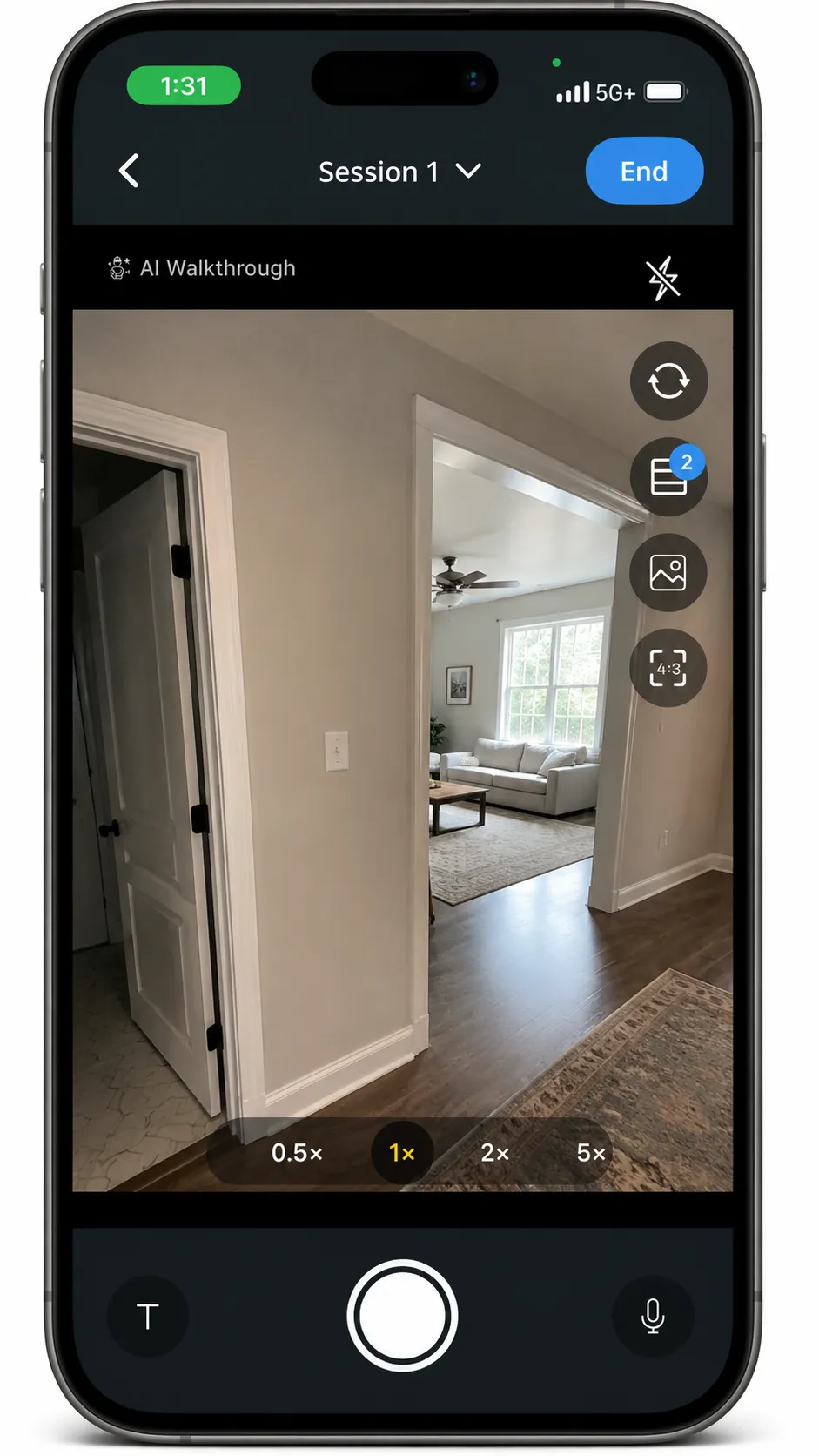
Move through the inspection area and capture the information you need.
Depending on the type of information being documented, you can capture items such as:
- Photos
- Notes and observations
- Audio or voice notes
You do not need to select the destination field in the template before capturing each item.
3. Finish the walkthrough
When you have finished capturing information, complete the walkthrough.
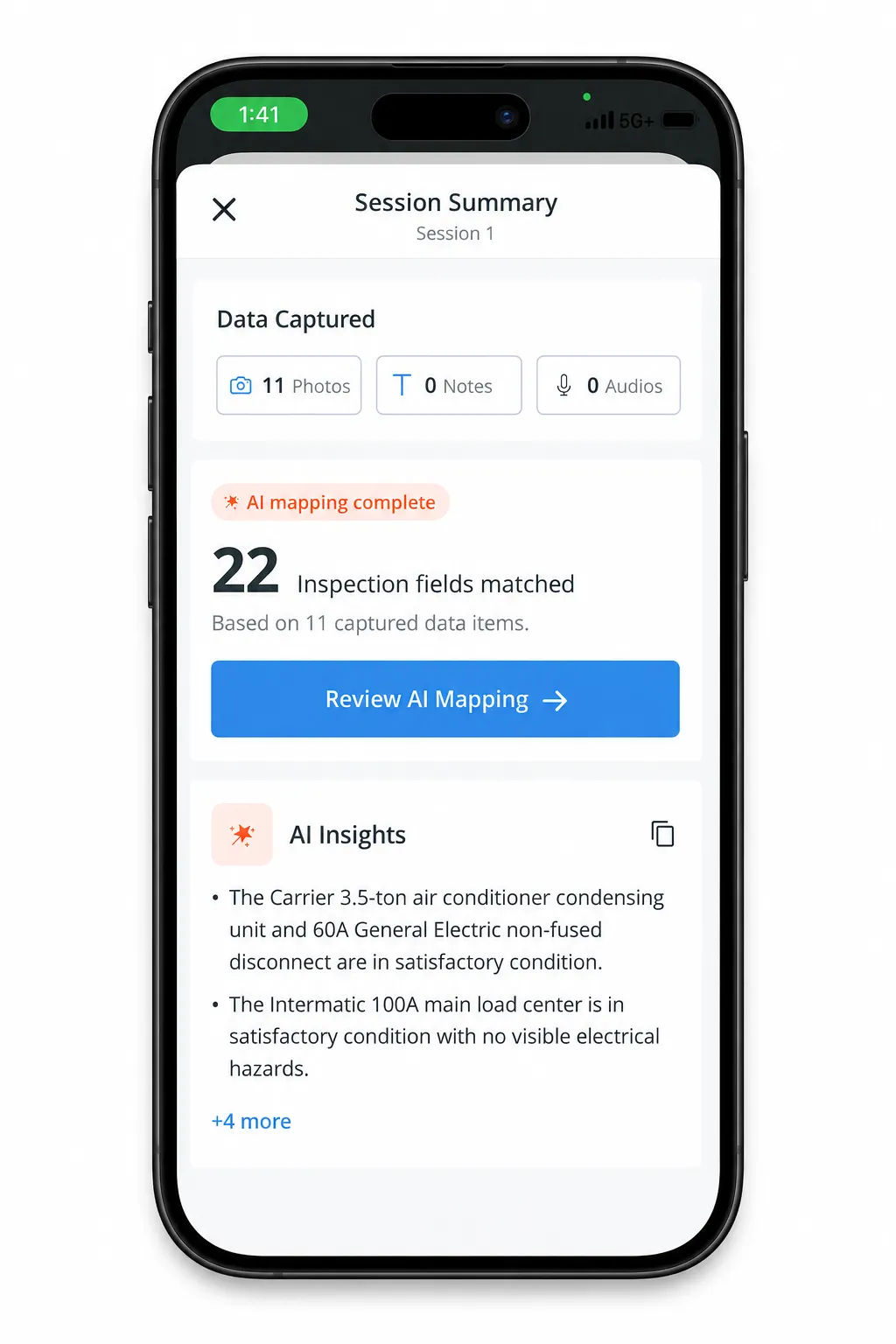
VLX AI analyzes the information collected during the walkthrough and identifies where each item may belong within the inspection template.
[SCREENSHOT: Processing or completed walkthrough screen]
4. Review the suggested mappings
AI Walkthrough presents the suggested mappings for review before information is added to the inspection.
Review each recommendation to make sure the captured information is being assigned to the appropriate question or field.
5. Apply the results
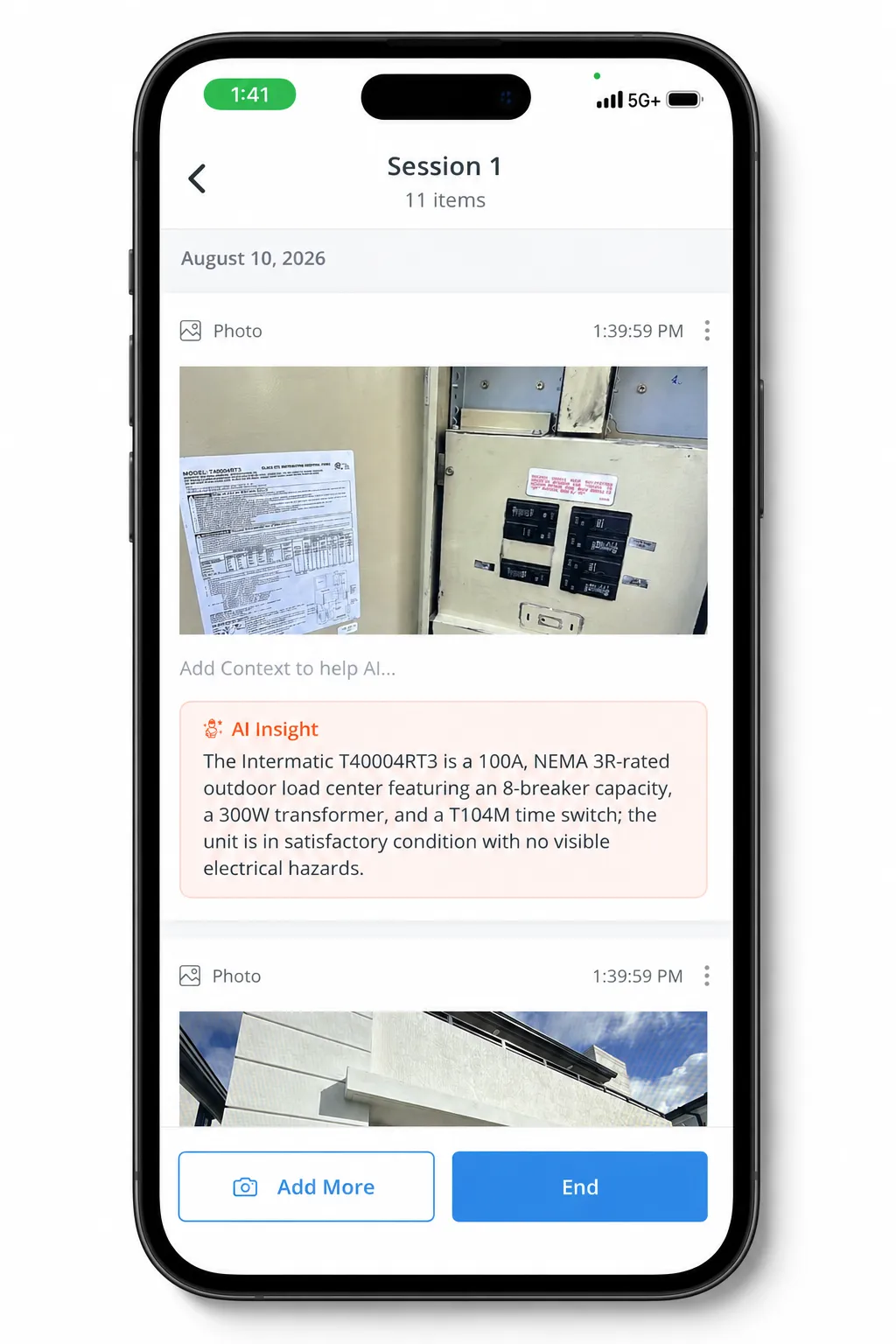
Once you are satisfied with the suggested mappings, apply them to the inspection.
The mapped information is then added to the corresponding fields in the inspection.
Access to AI Walkthrough
AI Walkthrough must be enabled for your organization and your user account must have access to the feature.
Administrators can configure AI Walkthrough under:
Settings → Organization settings → VLX AI → AI Walkthrough
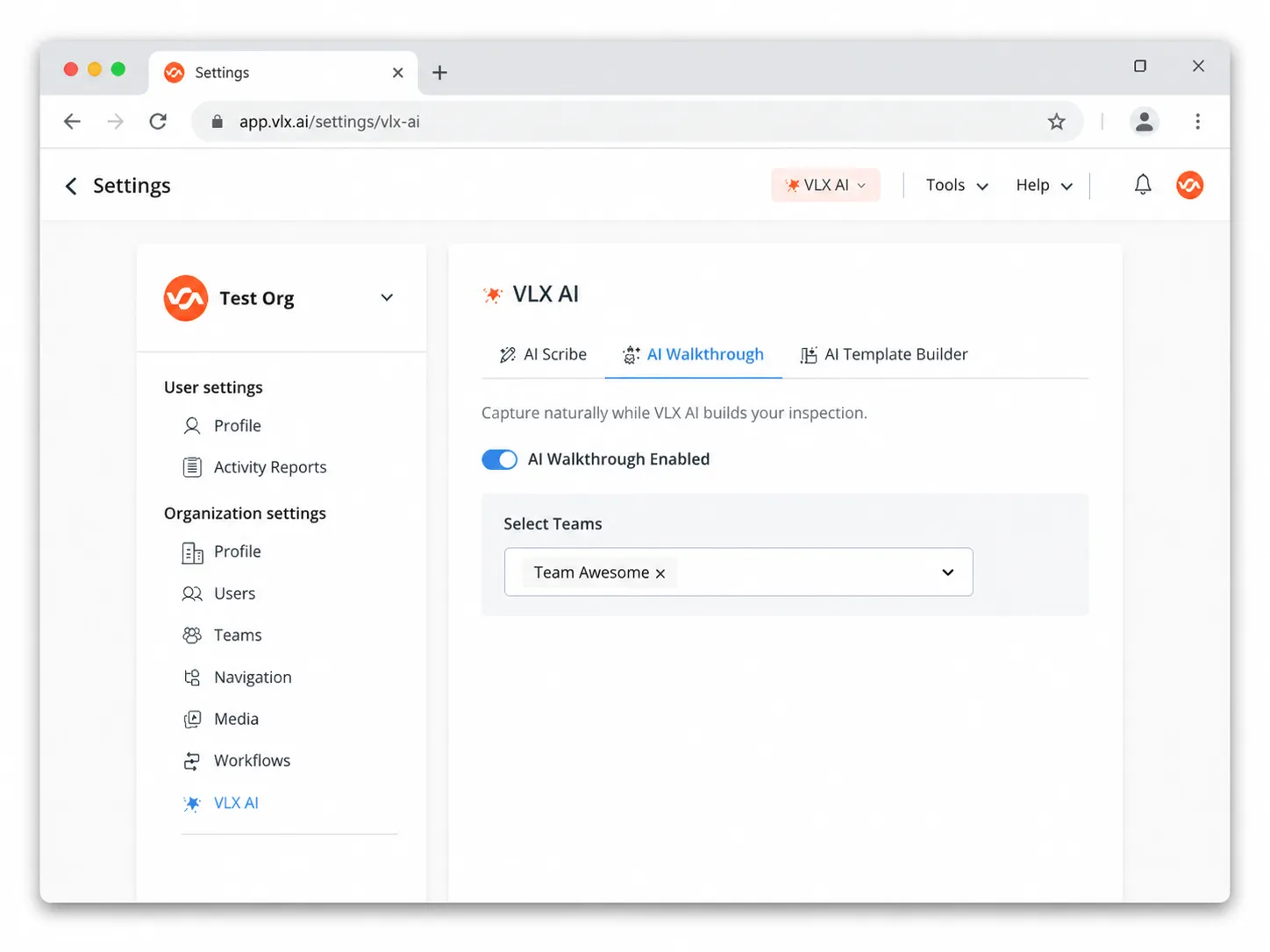
Administrators can control access for individual users under:
Settings → Organization settings → Users
See Managing VLX AI AccessManaging VLX AI for more information about enabling VLX AI features and controlling user access.
AI Walkthrough usage
Using AI Walkthrough consumes VLX AI credits.
You can view your current AI usage from the VLX AI menu in the top navigation bar. Administrators can also review detailed organization usage by user, team, and feature.
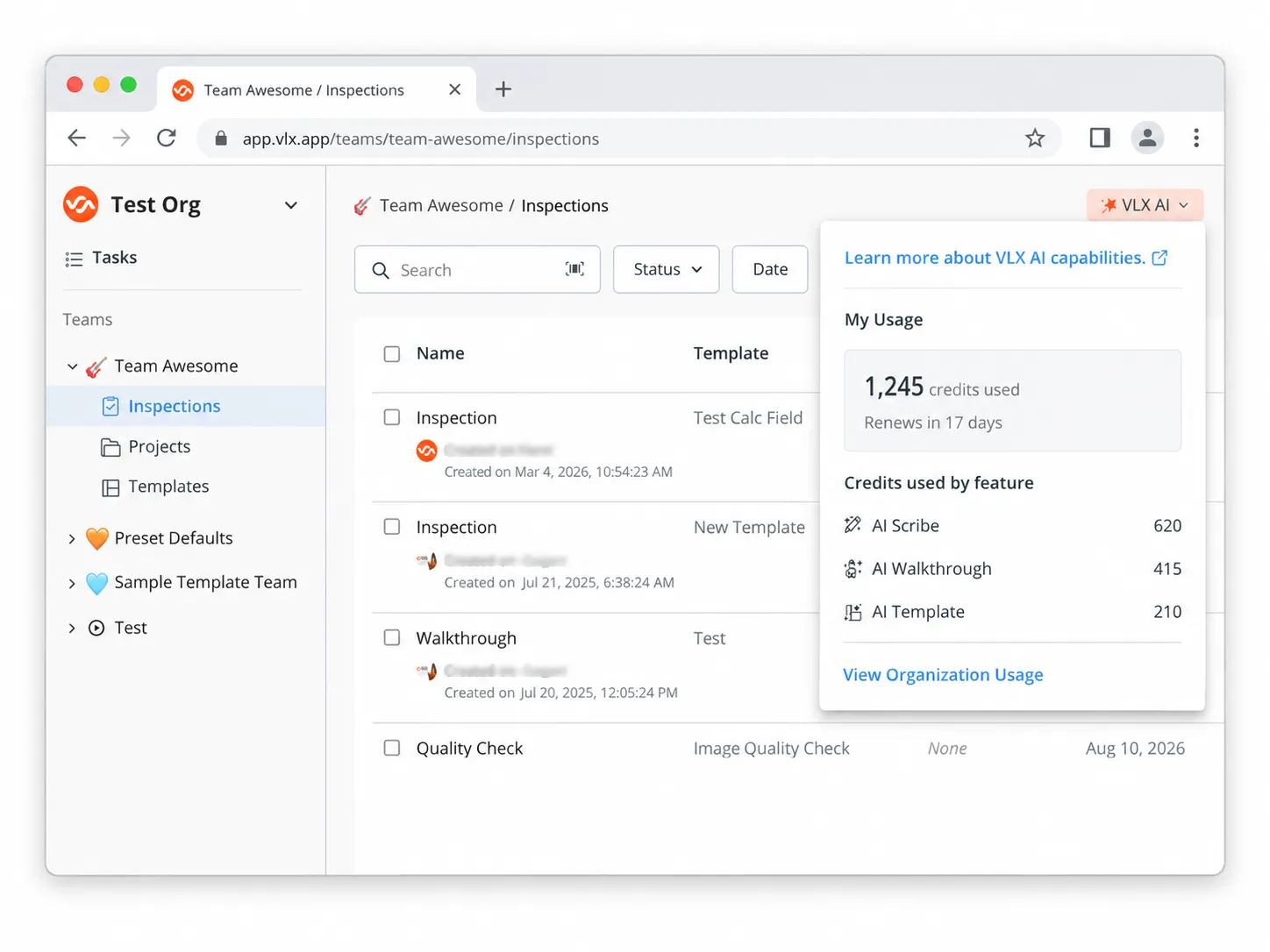
See Monitoring VLX AI UsageViewing VLX AI Usage for more information.
Always Review AI recommendations
AI Walkthrough is designed to assist with organizing inspection information. Always review suggested mappings before applying them to an inspection to make sure the information is assigned correctly.
Related articles
- AI ScribeAI Scribe
- AI Template BuilderAI Template Builder
- Monitoring VLX AI UsageMonitoring VLX AI Usage
- Managing VLX AI AccessManaging VLX AI Usage