
AI Template Builder
AI Template Builder is a VLX AI feature that helps you create inspection templates by describing what you need in plain language.
Instead of building every section and question manually, describe the inspection, checklist, audit, or process you want to create. VLX AI generates a starting template that you can review and customize before adding it to your team.
How AI Template Builder works
1. Start a new template
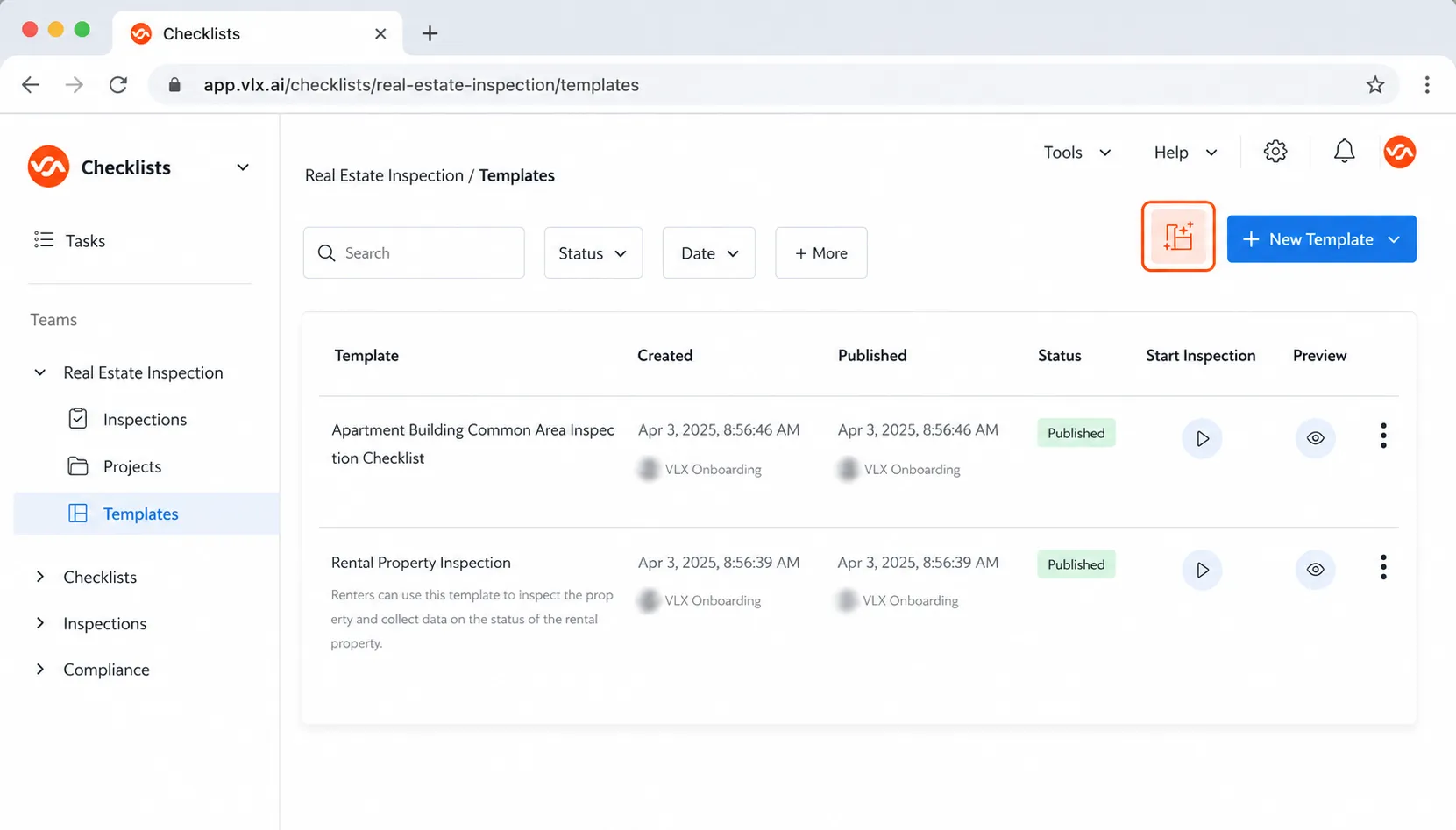
From your team menu, create a new template clicking on the VLX AI Template Builder icon.
2. Describe the template
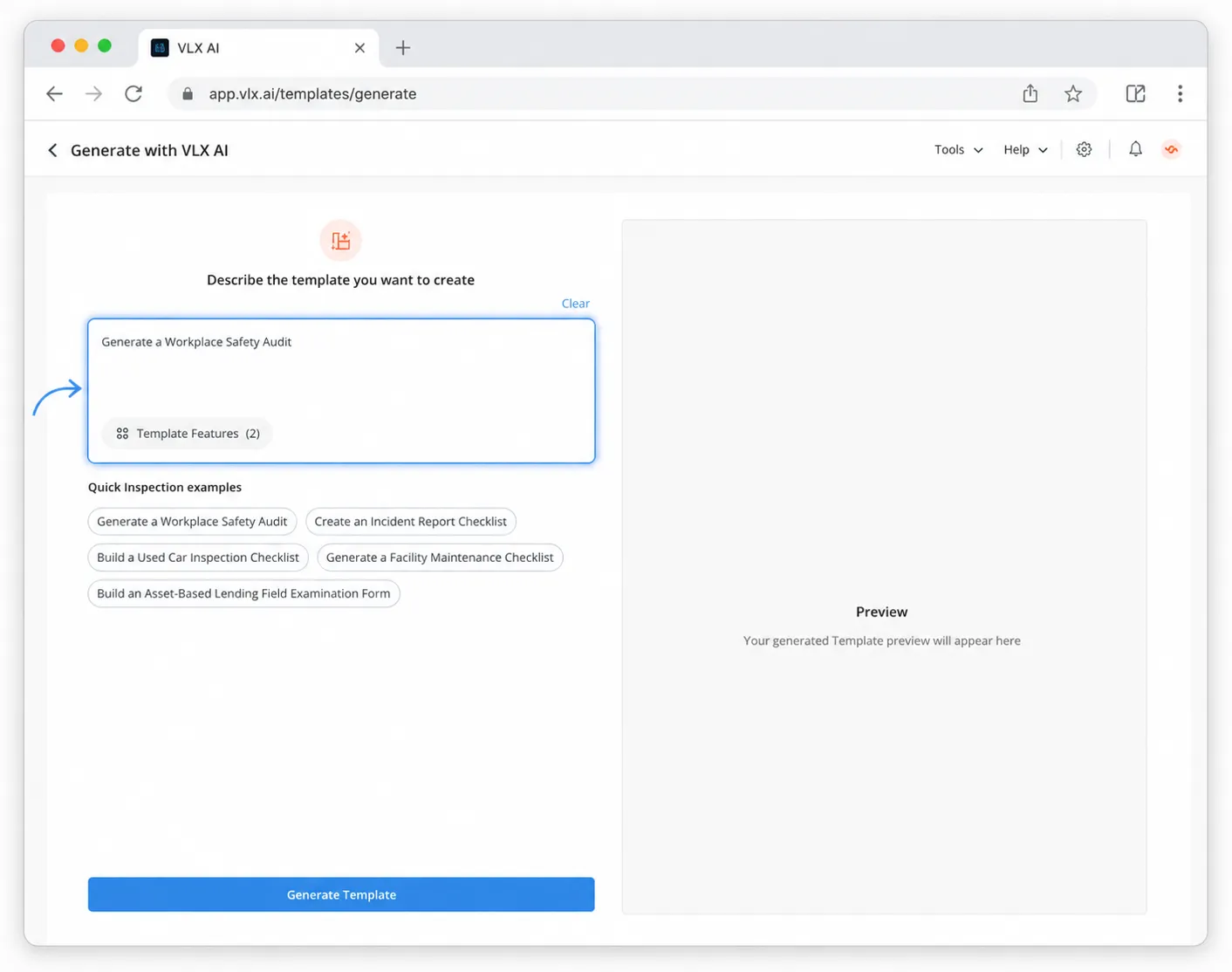
Enter a description of the template you want to create.
For example:
Create a safety Incident Report Checklist.
You can include details about the type of inspection, areas that should be covered, or specific information that needs to be collected.
3. Add template requirements
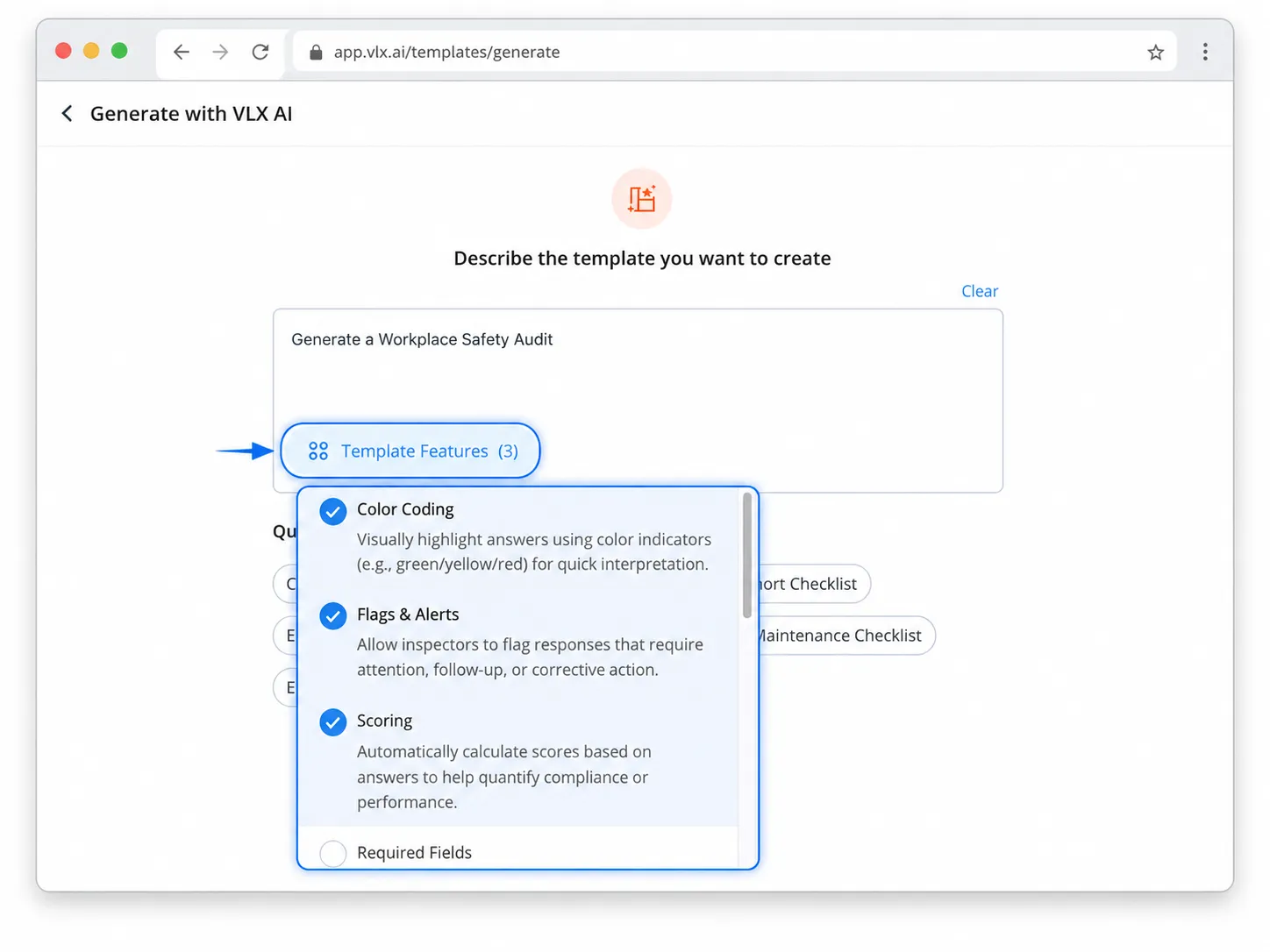
Provide additional requirements or features you want VLX AI to consider when generating the template.
The more relevant context you provide, the better VLX AI can tailor the initial structure to your workflow.
4. Generate the template
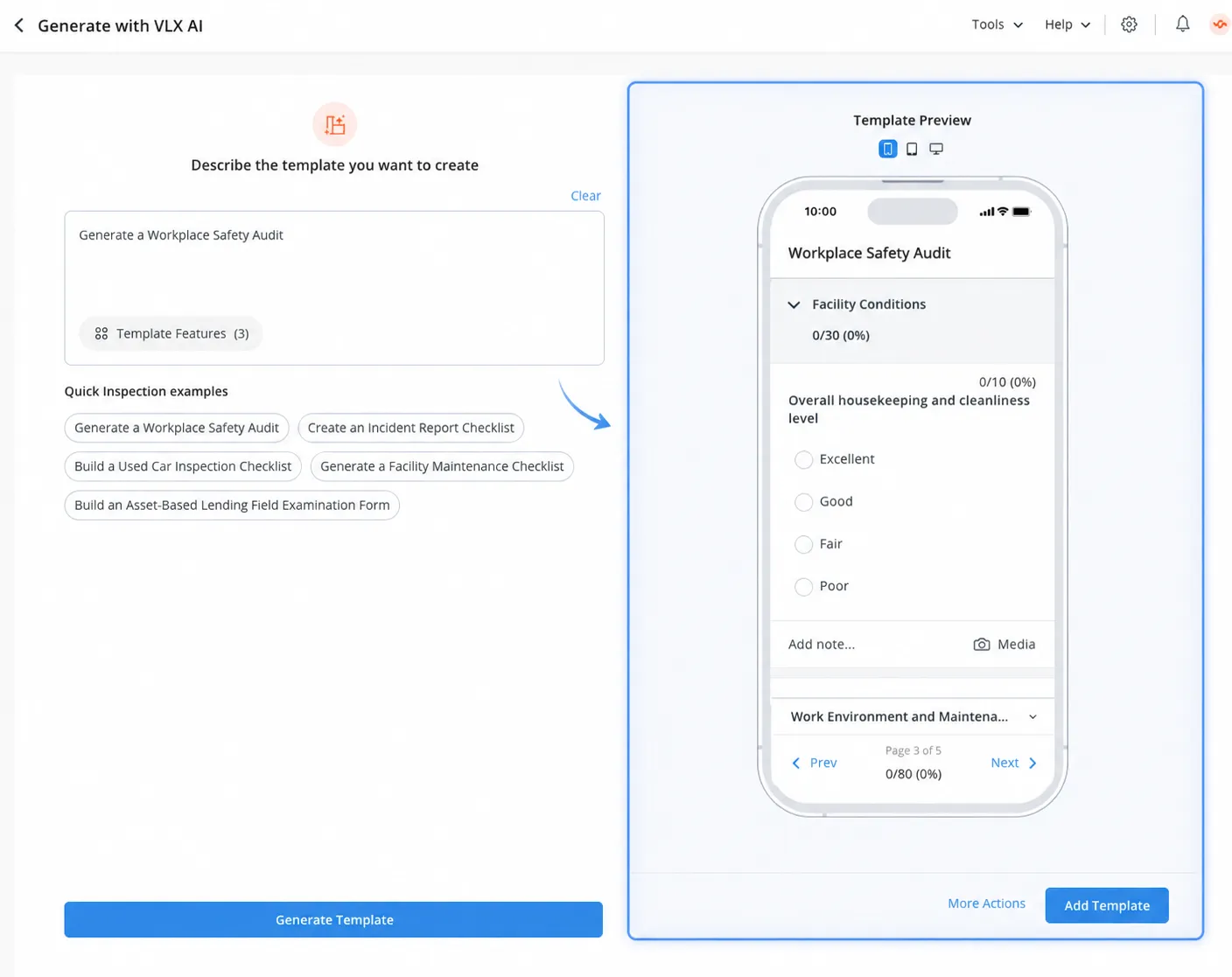
Select Generate Template.
VLX AI creates a proposed template based on your instructions, including elements such as:
- Sections
- Questions
- Appropriate field types
- Selection options
- Applicable conditional logic
- Notes and media fields where appropriate
5. Review the template preview
Review the generated template before adding it.
The preview lets you see the proposed structure and questions so you can determine whether it meets your needs.
[SCREENSHOT: AI Template Builder preview]
6. Add the template
When you are satisfied with the generated structure, select Add Template.
The template is added to VLX and can then be edited using the standard Template Builder.
[SCREENSHOT: Add Template button]
Customize the generated template
An AI-generated template is a starting point. After adding it, you can use the standard VLX Template Builder to further customize it.
You can:
- Add, remove, or reorder sections
- Edit questions and instructions
- Change field types
- Add or modify conditional logic
- Configure required fields
- Configure scoring and flags
- Add media requirements
- Configure reports and other template properties
Review the complete template before publishing it for use.
Access to AI Template Builder
AI Template Builder must be available for your organization, and your user account must have access to the feature.
Administrators can manage access under:
Settings → Organization settings → Users
Locate the user, open the user's menu, and enable or disable AI Template Builder.
See Managing VLX AI AccessManaging VLX AI for more information about feature configuration and user access.
AI Template Builder usage
Using AI Template Builder consumes VLX AI credits.
You can view your current AI usage from the VLX AI icon in the top navigation bar. Administrators can also review detailed usage across the organization.
See Monitoring VLX AI UsageViewing VLX AI Usage for more information.
Review AI-generated templates
VLX AI is designed to provide a starting point for template creation. Review all AI-generated questions, field types, logic, and requirements before publishing the template to make sure they accurately reflect your inspection process.
Related articles
- AI WalkthroughAI Walkthrough
- AI ScribeAI Scribe
- Monitoring VLX AI UsageMonitoring VLX AI Usage
- Managing VLX AI AccessManaging VLX AI Usage